NOB IPTV Smart TV Setup Guide
This guide walks you through setting up NOB IPTV on your Samsung, LG, or webOS-enabled Smart TV using a supported media player application.
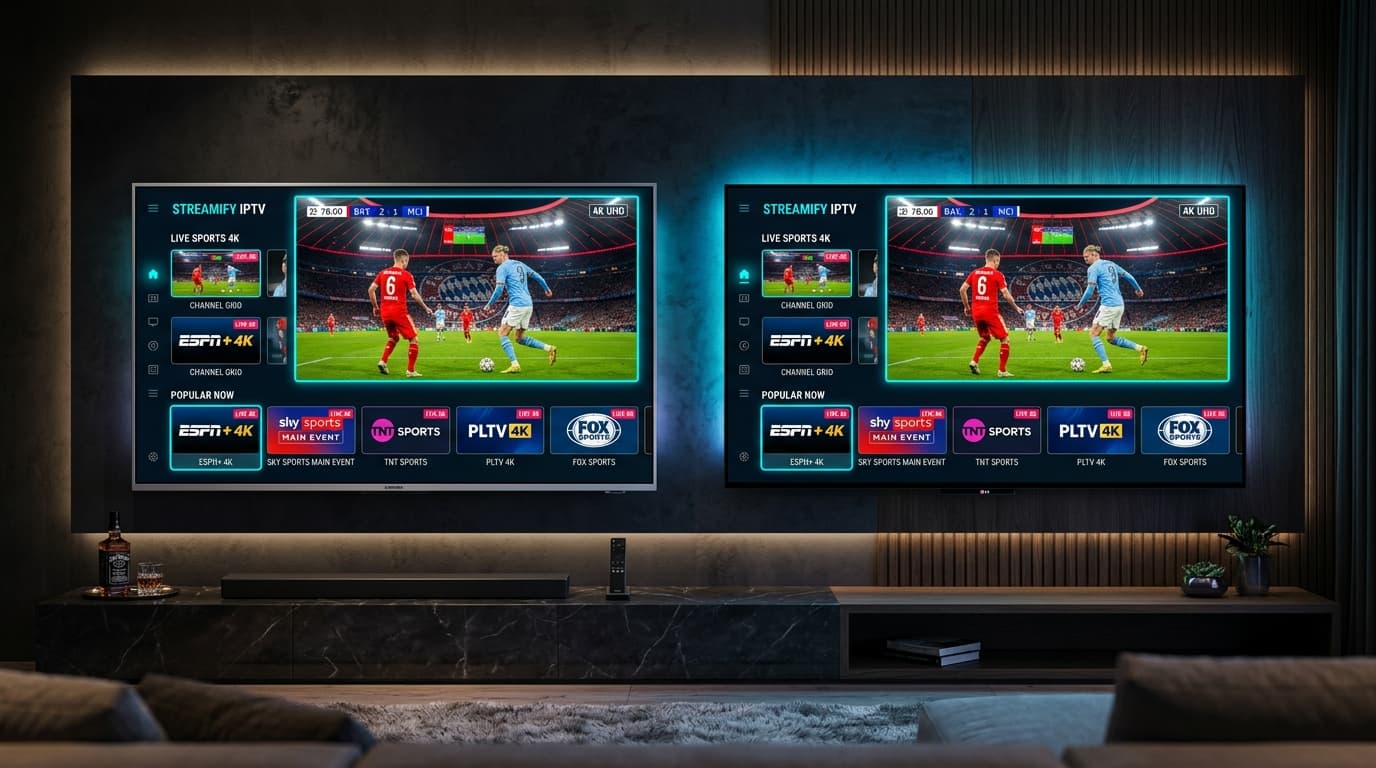
High-Speed HD & 4K IPTV Streaming on Smart TV
Before You Start
Ensure you have the following prerequisites ready before starting your NOB IPTV configuration:
Your NOB IPTV playlist URL or server login credentials received via email
Samsung Smart TV (Tizen OS 3.0+) or LG Smart TV (webOS 4.0+)
Stable connection of 25 Mbps or higher for HD/4K playback
Supported Smart TV media player application from the TV App Store
Install the Required Application
Navigate to your Smart TV's official Content Store (LG Content Store or Samsung Smart Hub). Search for your supported IPTV/media player application and select 'Install'.
- Turn on your Smart TV and ensure it is connected to the internet.
- Open the LG Content Store or Samsung App Store.
- Search for a supported player application and download it to your TV.
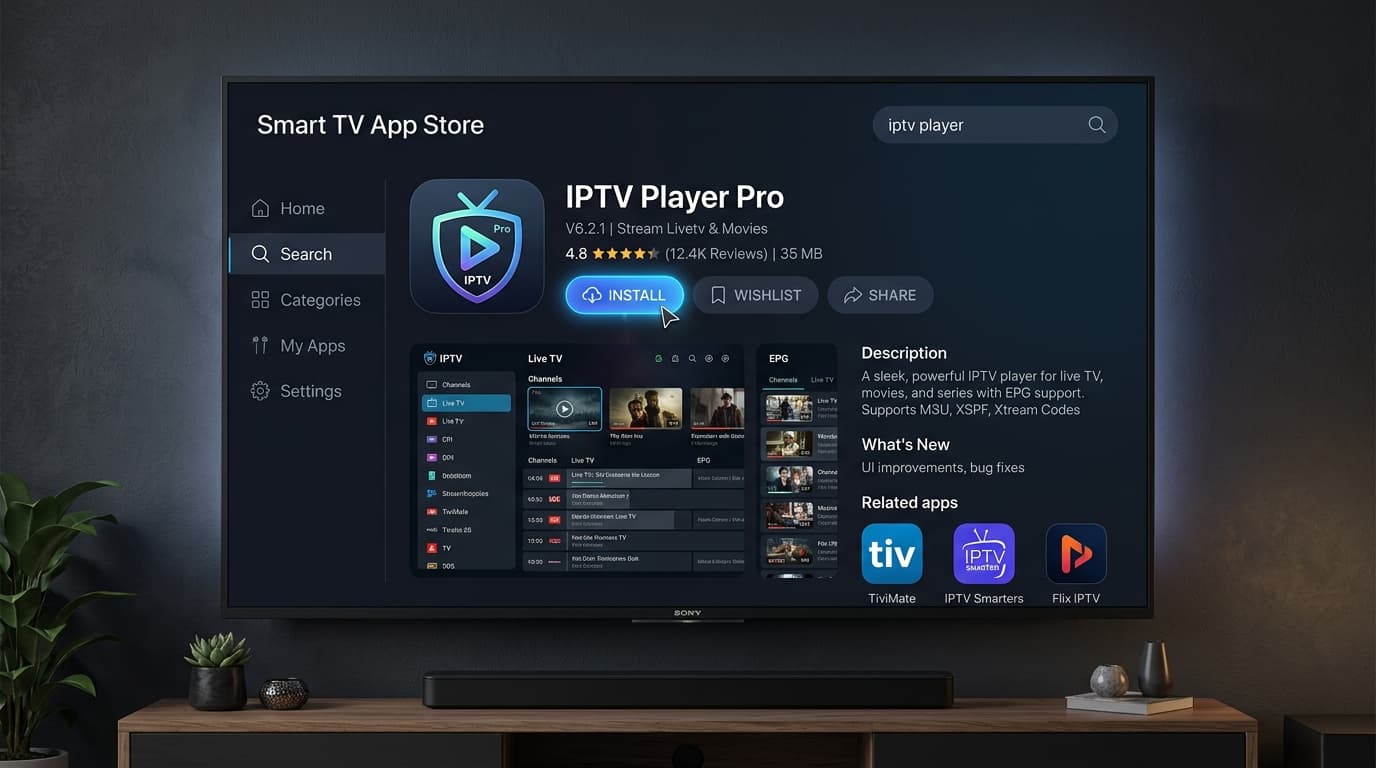
Search screen showing the supported player application in the official Smart TV app store.
Open the Application
Once installation completes, launch the application from your TV home screen. Take note of any MAC address or device key displayed on the initial welcome screen if required.
- Launch the installed player application from your TV app menu.
- Accept any standard application terms of use on first launch.
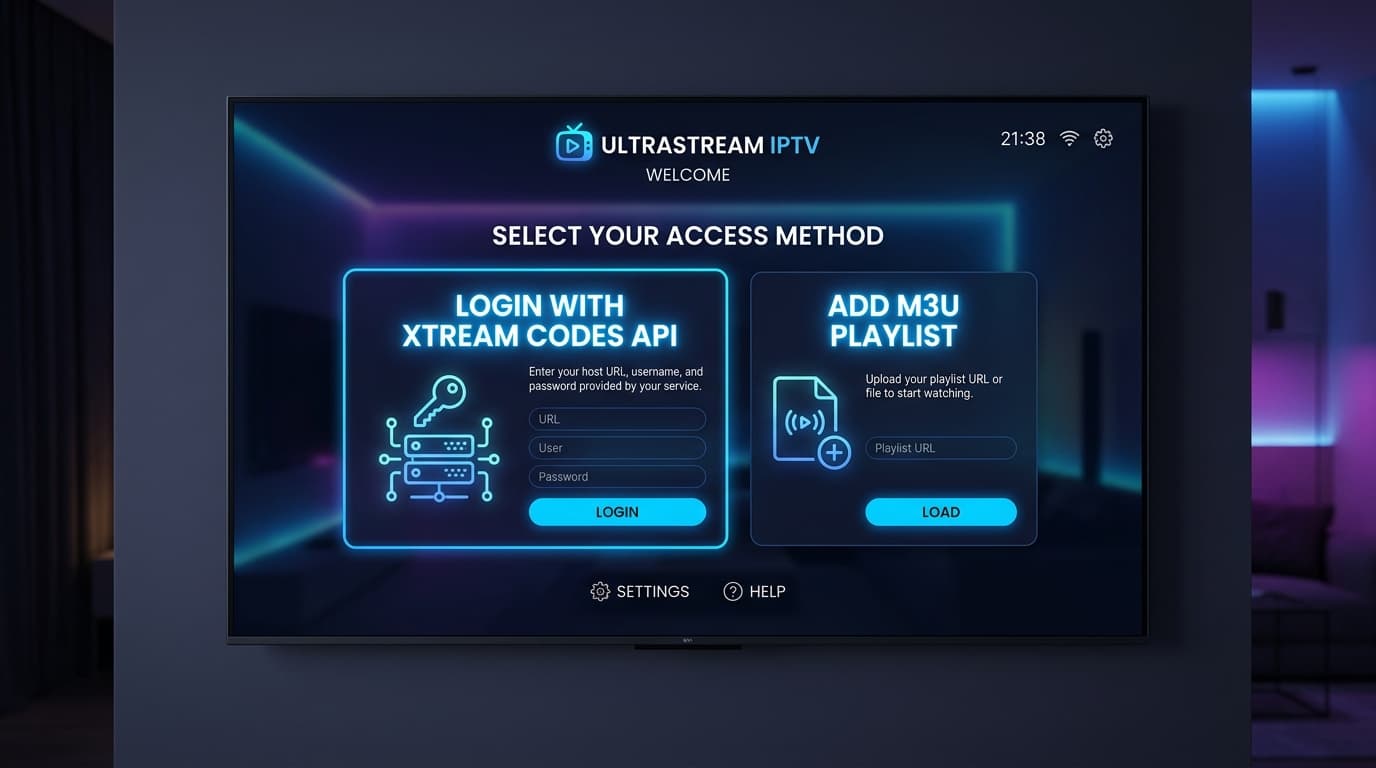
Initial welcome screen showing application settings and connection status.
Enter the Information Supplied After Purchase
Input the service credentials provided in your NOB IPTV activation email. Depending on the application, you will select either M3U Playlist or Xtream Codes API login.
- Select 'Add Playlist' or 'Login with Xtream Codes API'.
- Enter 'NOB IPTV' as the playlist or profile name.
- Input your server URL, username, and password provided in your order email.
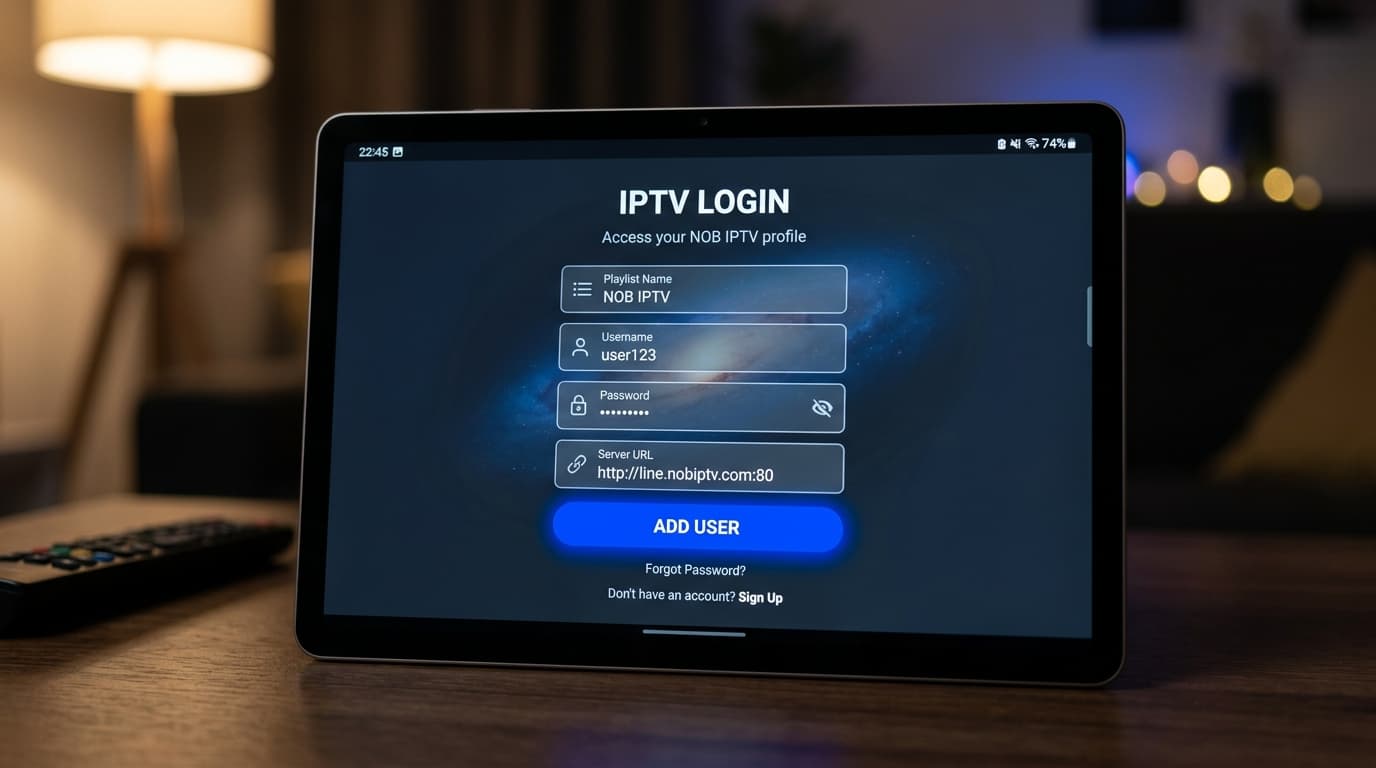
Configuration screen displaying playlist URL or username/password entry fields.
Complete Configuration
Select 'Save' or 'Load Channels'. The application will connect to the NOB IPTV servers, download the channel directory, and load the Electronic Program Guide (EPG).
- Confirm that the playlist status indicates 'Connected' or 'Channels Loaded'.
- Allow the application 30–60 seconds to populate your channel groups.
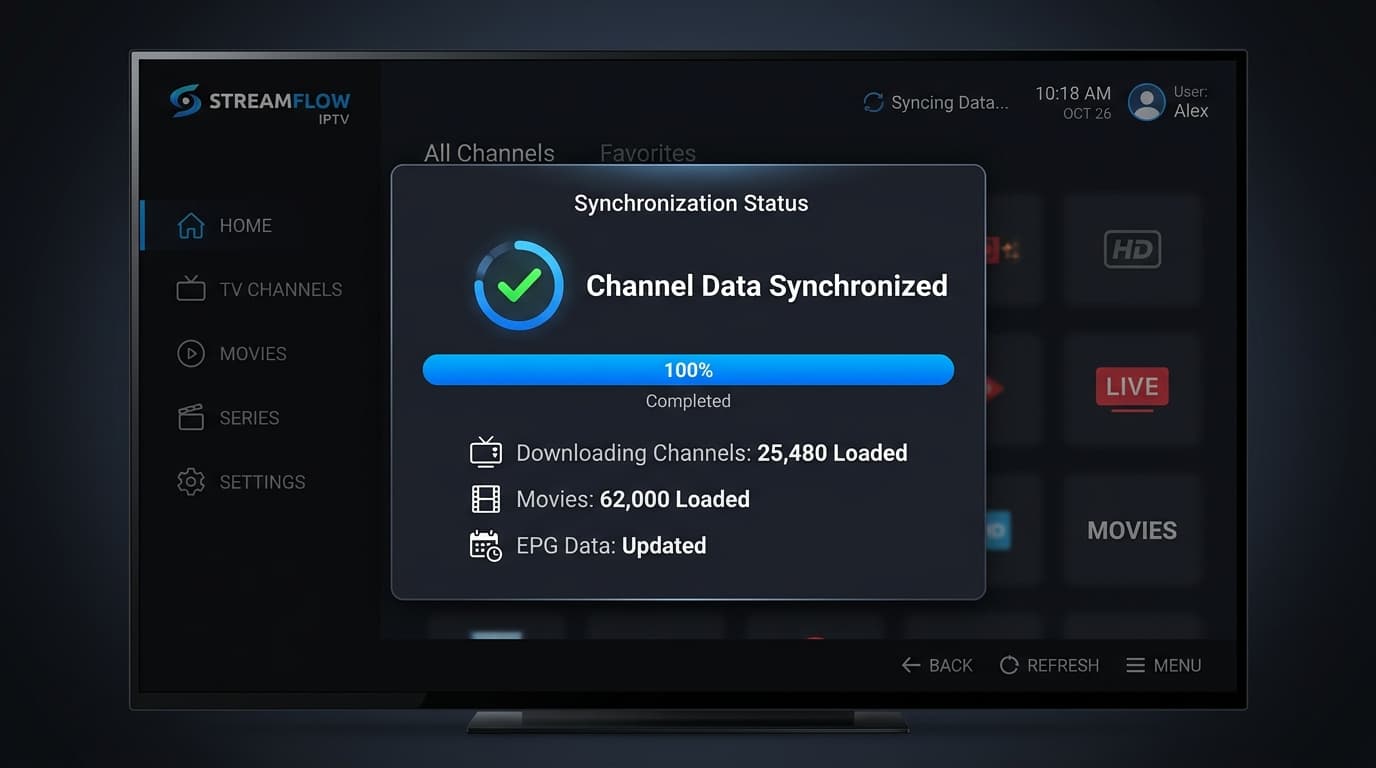
Loading bar screen showing channels, categories, and guide sync.
Start Using the Service
Your NOB IPTV service is now active on your Smart TV. Navigate through categories using your TV remote to enjoy your authorized live streams and on-demand titles.
- Browse Live TV categories or Video On Demand libraries.
- Select any authorized stream to begin playback.
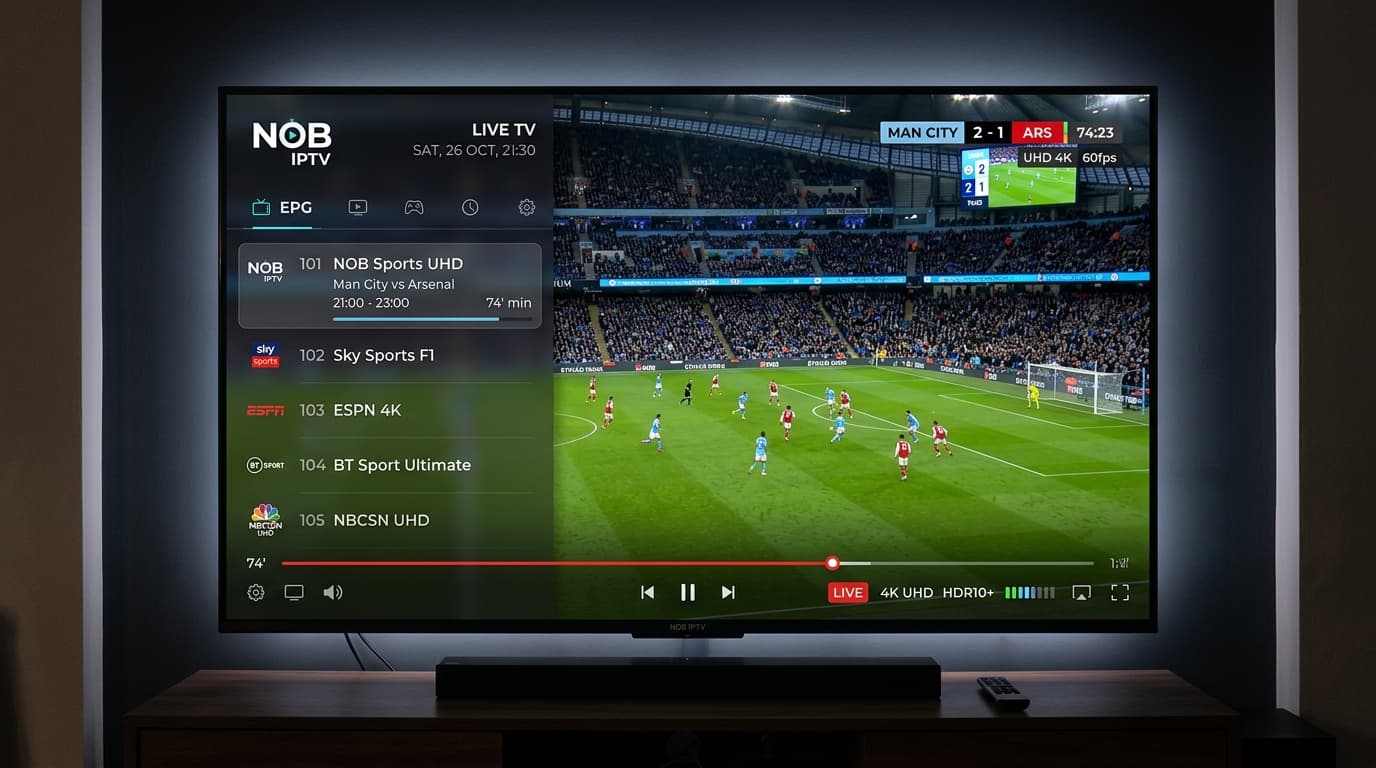
Live streaming interface displaying channel grid and program information.
Need Help with Smart TV Setup?
Our support team is ready to guide you through any configuration questions or technical issues.