NOB IPTV iPhone / iPad Setup Guide
Configure NOB IPTV on your Apple iPhone or iPad running iOS 14+ or iPadOS using a supported media player from the official Apple App Store.
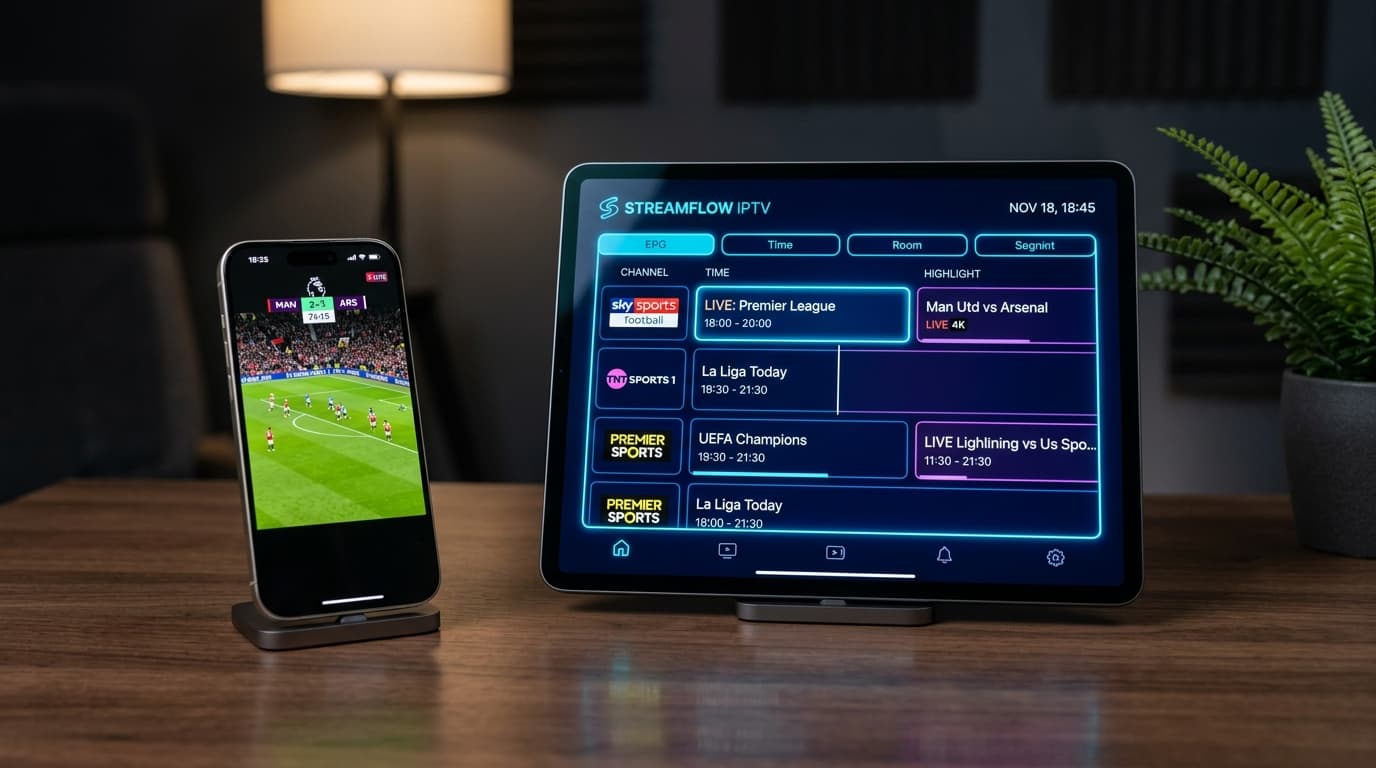
High-Speed HD & 4K IPTV Streaming on iPhone / iPad
Before You Start
Ensure you have the following prerequisites ready before starting your NOB IPTV configuration:
Your NOB IPTV login details or playlist link received via email
Apple iPhone or iPad running iOS 14.0 or iPadOS 14.0 or newer
Wi-Fi or cellular data connection with at least 15 Mbps download speed
Supported media streaming application from the Apple App Store
Install the Required Application
Open the Apple App Store on your iPhone or iPad. Search for your preferred compatible IPTV player app and tap 'Get' to install it.
- Open the Apple App Store.
- Search for a supported player application.
- Authenticate with Face ID, Touch ID, or Apple ID password to install.
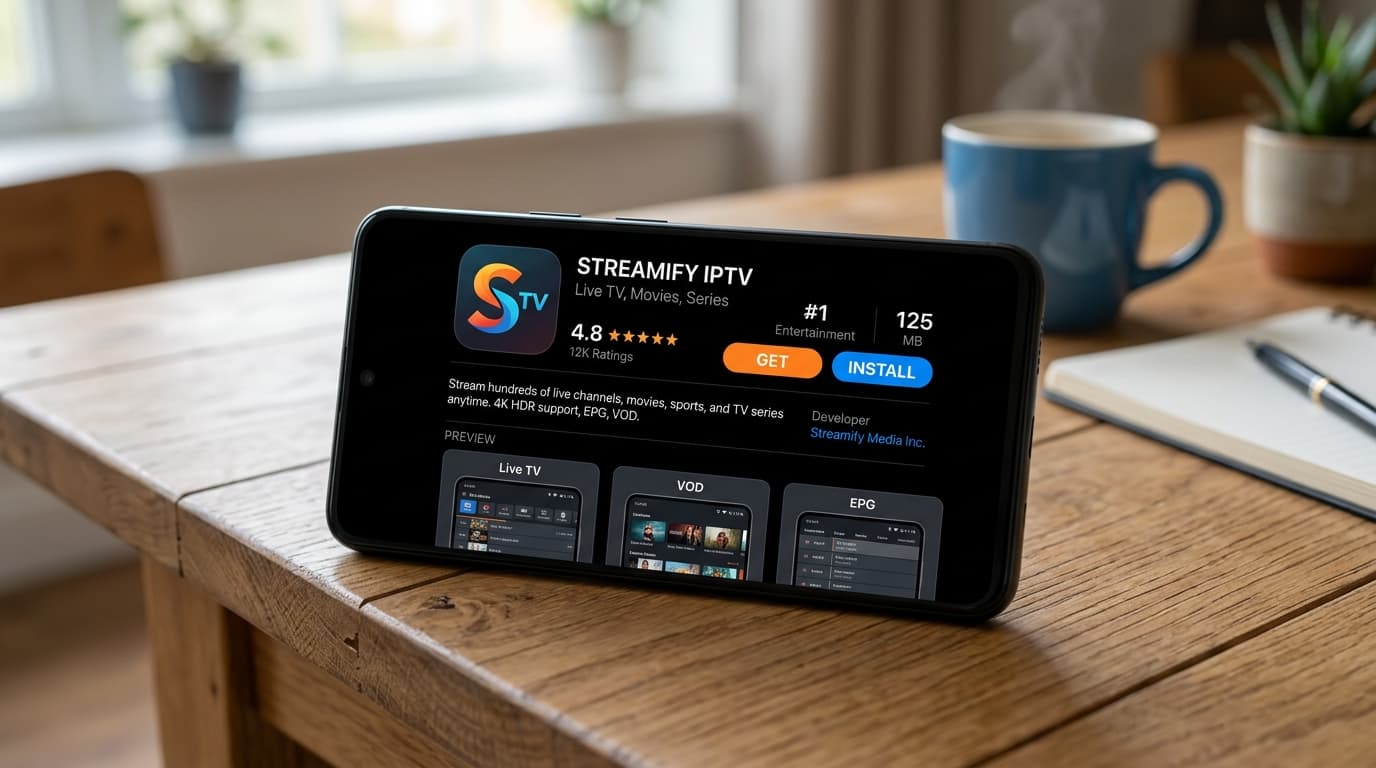
Apple App Store screen showing compatible player app and 'Get' button.
Open the Application
Launch the app from your home screen. When prompted, allow local network access so the application can communicate with media servers.
- Tap the app icon on your iPhone/iPad home screen.
- Select 'Allow' on the iOS Local Network access prompt.
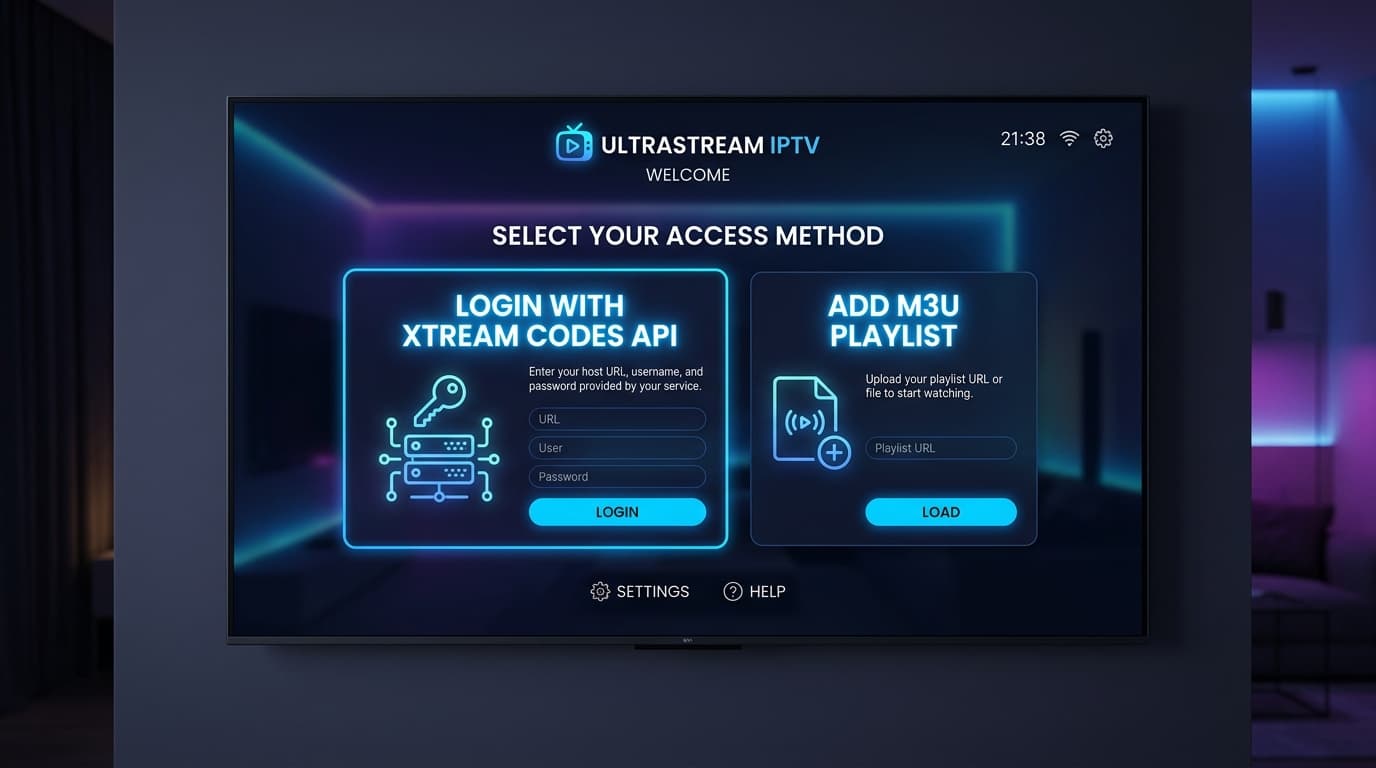
Initial app setup screen on iOS with playlist addition options.
Enter the Information Supplied After Purchase
Select 'Add Playlist via Xtream Codes API' or 'Add M3U URL'. Enter your NOB IPTV username, password, and server URL as provided in your activation email.
- Name the playlist 'NOB IPTV'.
- Copy and paste your username and password from your confirmation email.
- Enter the server URL accurately.
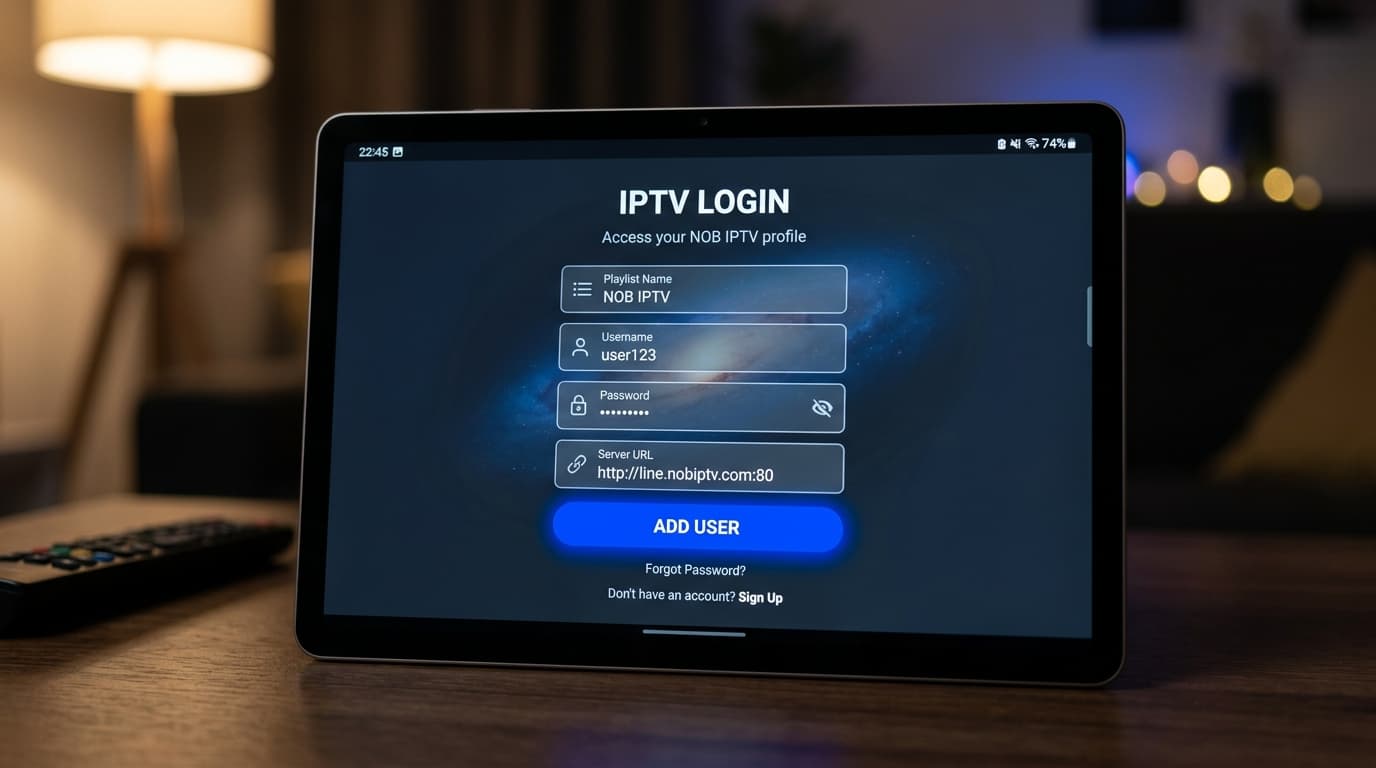
iOS form interface showing fields for Username, Password, and Server URL.
Complete Configuration
Tap 'Save' or 'Download Channels'. The app will securely authenticate and download the complete channel listings and program guide data.
- Wait for playlist synchronization to finish.
- Confirm that channel categories are displayed.
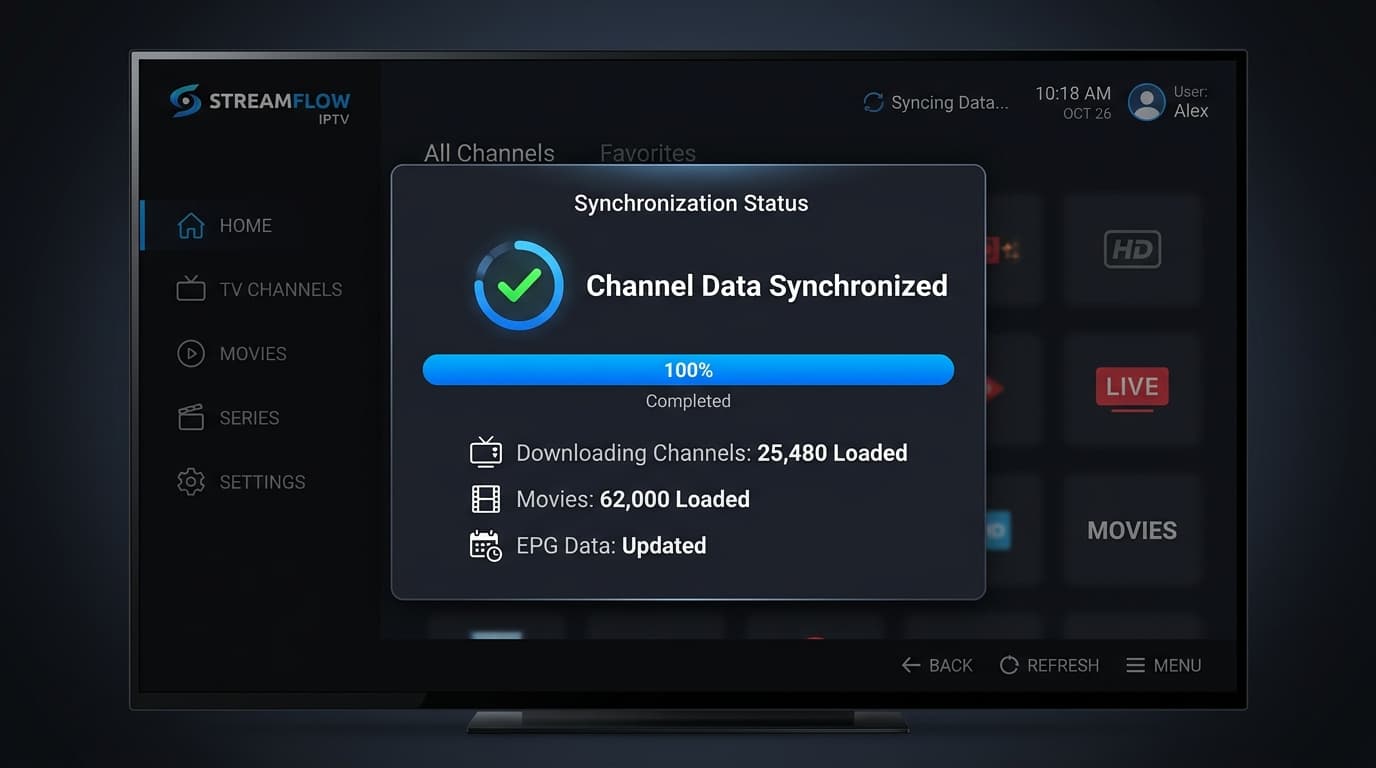
Sync progress dialog on iOS showing categories loading.
Start Using the Service
You are now ready to stream with NOB IPTV on your Apple device. Enjoy live channels, catch-up programs, and on-demand media, or use AirPlay to stream to Apple TV.
- Browse categories or use search to find your preferred stream.
- Tap any authorized channel to begin watching.
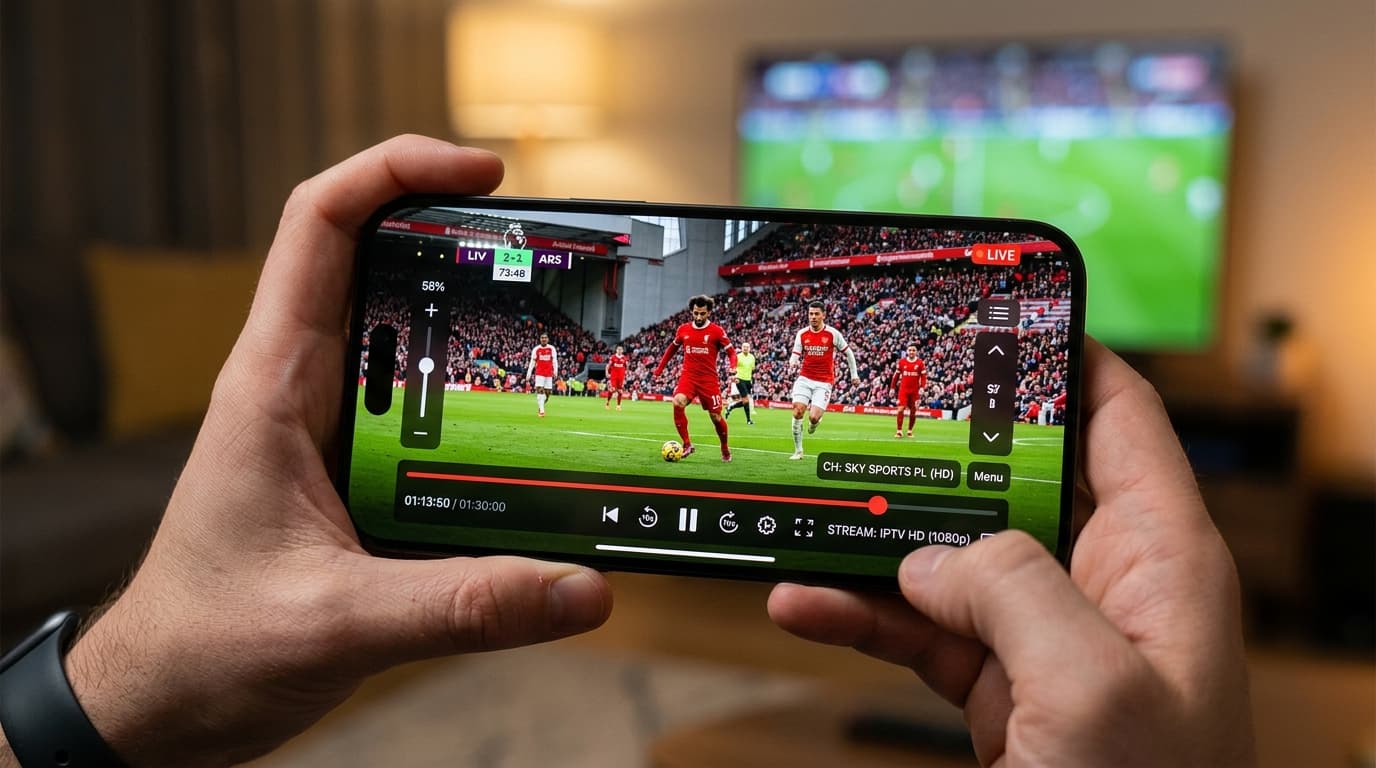
iOS media player view showing channel playback and AirPlay icon.
Need Help with iPhone / iPad Setup?
Our support team is ready to guide you through any configuration questions or technical issues.