NOB IPTV Apple TV Setup Guide
Step-by-step instructions to configure your NOB IPTV service on Apple TV 4K or Apple TV HD using a supported tvOS media player application.
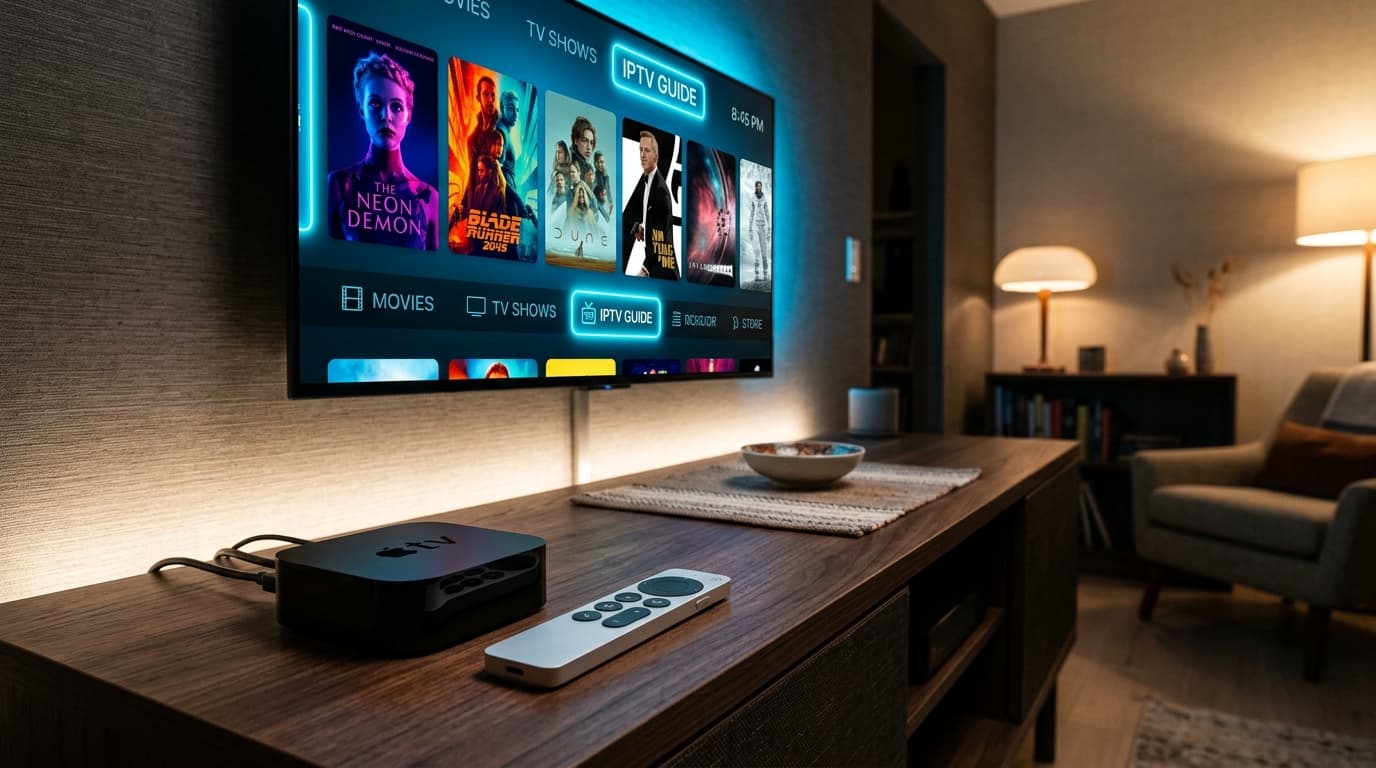
High-Speed HD & 4K IPTV Streaming on Apple TV
Before You Start
Ensure you have the following prerequisites ready before starting your NOB IPTV configuration:
Your NOB IPTV server URL and account credentials delivered via email
Apple TV HD or Apple TV 4K running tvOS 14.0 or newer
Ethernet or high-speed Wi-Fi connection of 25 Mbps or higher
Supported IPTV player application installed from the tvOS App Store
Install the Required Application
From your Apple TV home screen, open the App Store. Search for your preferred tvOS IPTV media player and install it.
- Open the tvOS App Store.
- Search for a supported player application.
- Click the download icon to install it to your Apple TV.
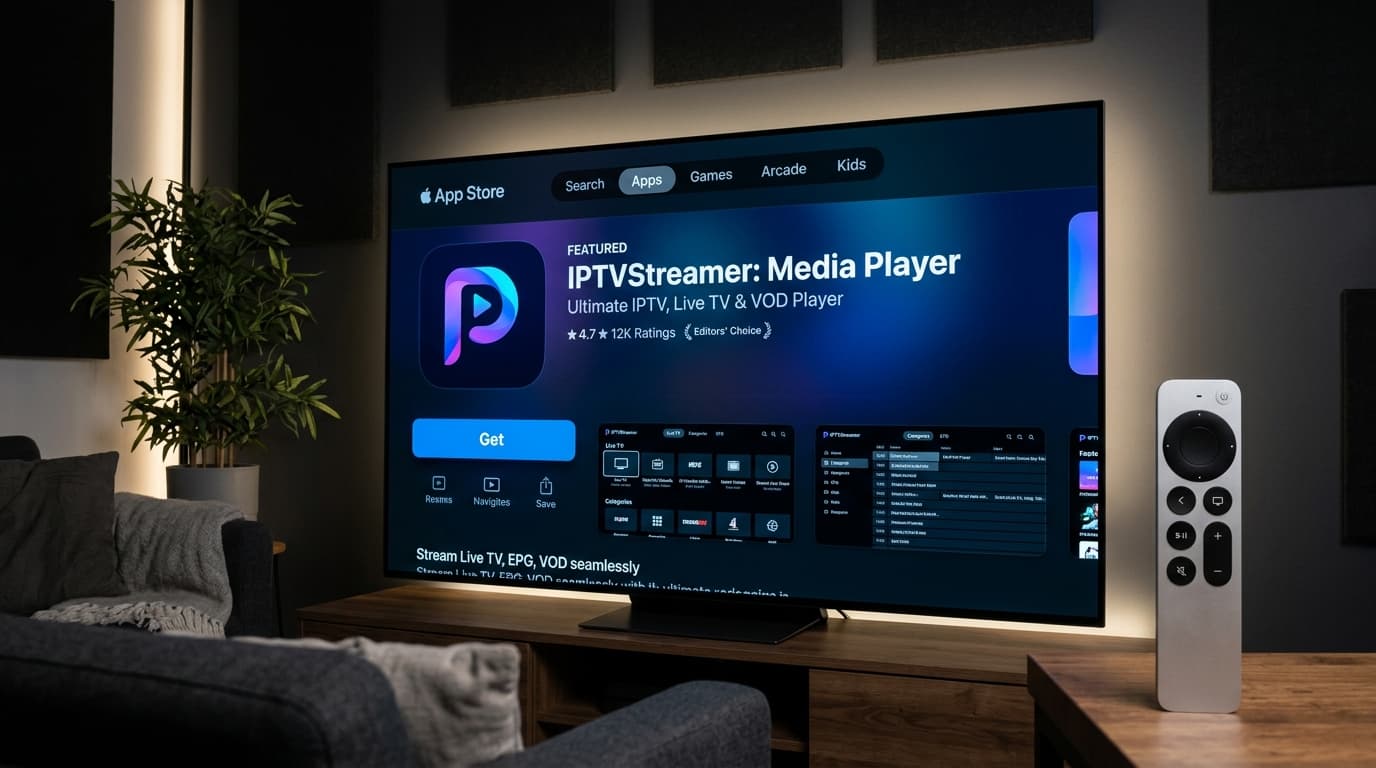
tvOS App Store product page showing player app tile and 'Get' button.
Open the Application
Launch the application using your Siri Remote. You will be greeted with the initial setup or playlist manager screen.
- Open the installed application from your tvOS top shelf.
- Select 'Add Playlist' or 'New Provider'.
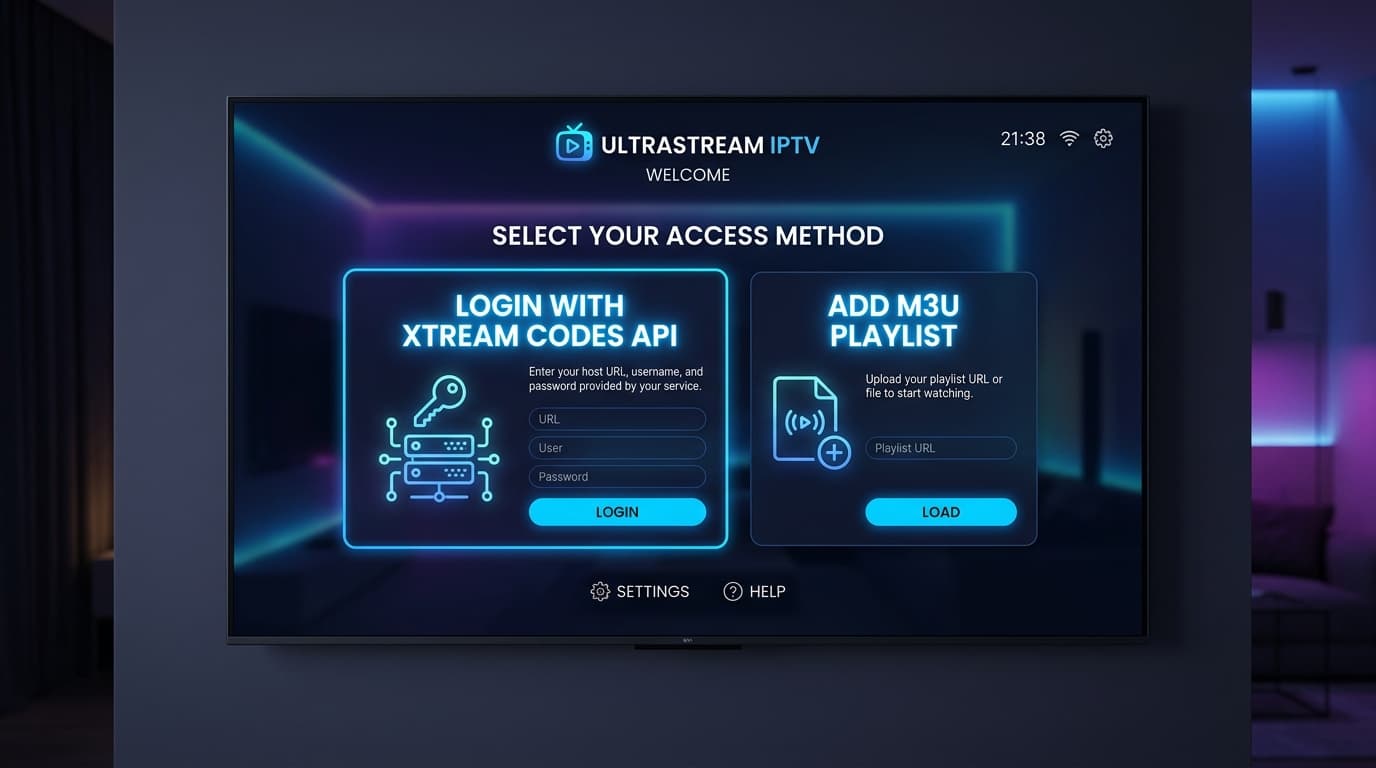
tvOS app welcome interface with options to connect server or playlist.
Enter the Information Supplied After Purchase
Choose 'Xtream Codes API'. Enter your username, password, and the server URL provided in your NOB IPTV confirmation email.
- Use your Siri Remote or the Apple TV Remote app on your iPhone for easy typing.
- Enter 'NOB IPTV' as the service label.
- Input your username, password, and complete server URL.
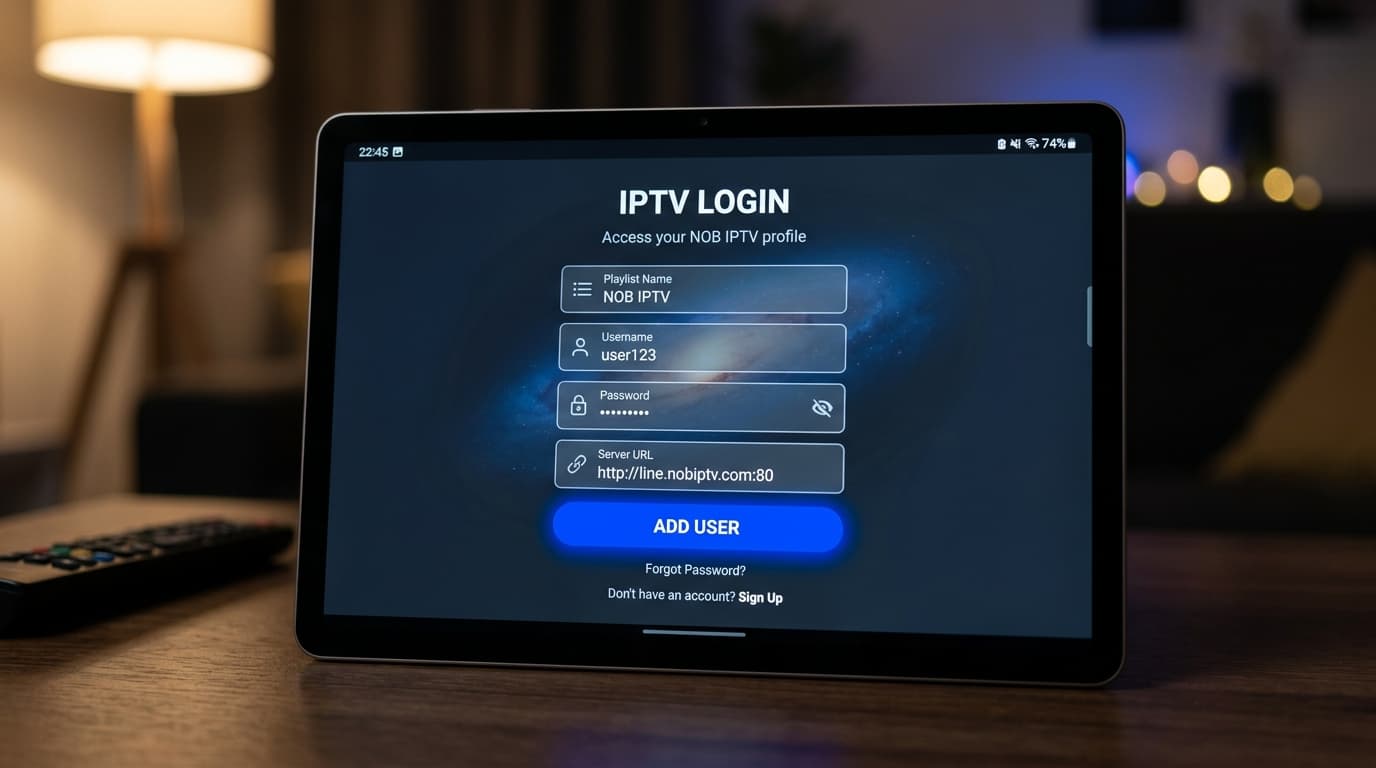
Apple TV on-screen text input screen for server credentials.
Complete Configuration
Select 'Connect' or 'Done'. The application will download and cache the authorized live channels, on-demand catalog, and electronic program guide (EPG).
- Allow the application to synchronize the complete channel list.
- Verify that category groups are visible.
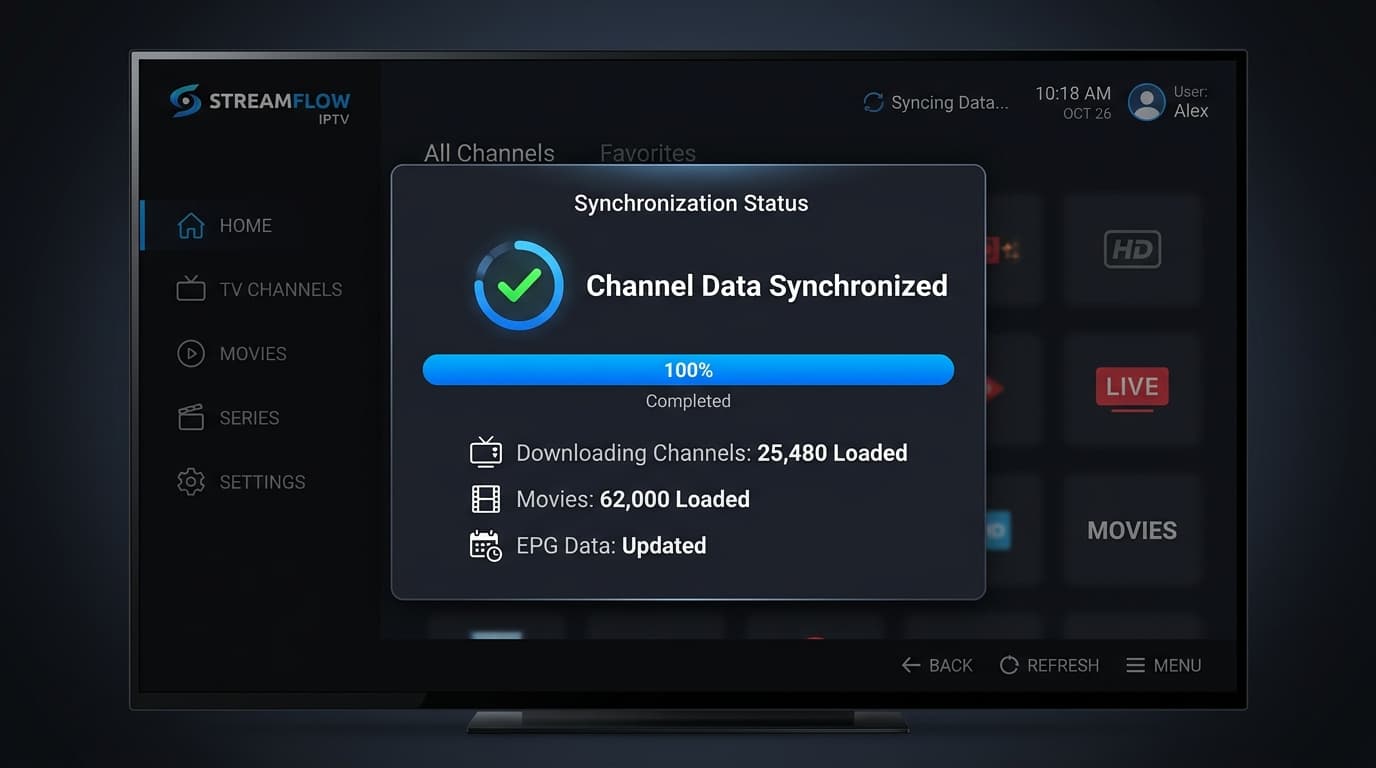
tvOS loading indicator showing synchronized channels and guide data.
Start Using the Service
You are all set! Browse channel groups with your Siri Remote and enjoy high-bitrate HD and 4K playback directly on your big screen.
- Browse categories using the top navigation bar.
- Select any authorized channel to enjoy smooth big-screen playback.
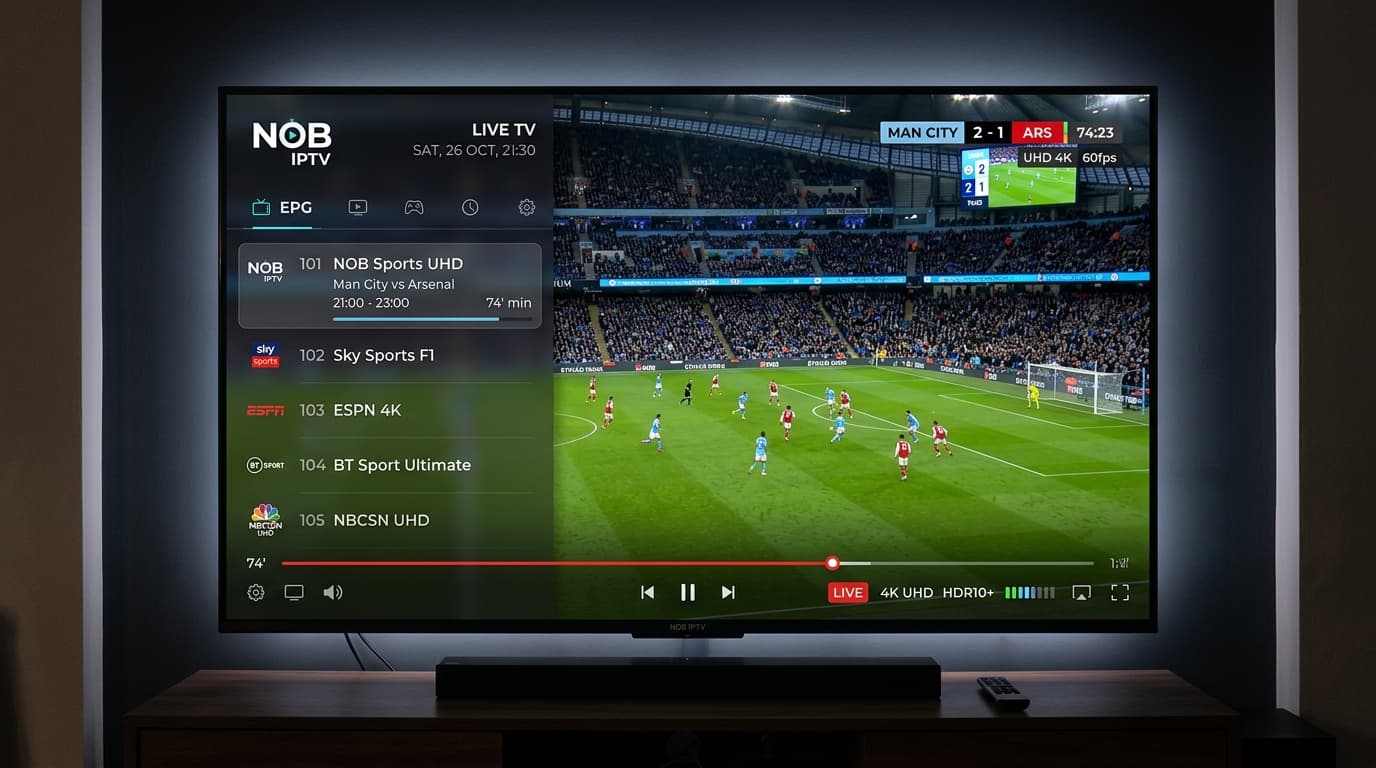
Apple TV player interface showing live channel playback and EPG grid.
Need Help with Apple TV Setup?
Our support team is ready to guide you through any configuration questions or technical issues.