NOB IPTV Mac (macOS) Setup Guide
Configure your NOB IPTV service on Apple Mac computers (MacBook, iMac, Mac mini, or Mac Studio) running macOS Big Sur or newer with Apple Silicon or Intel chips.
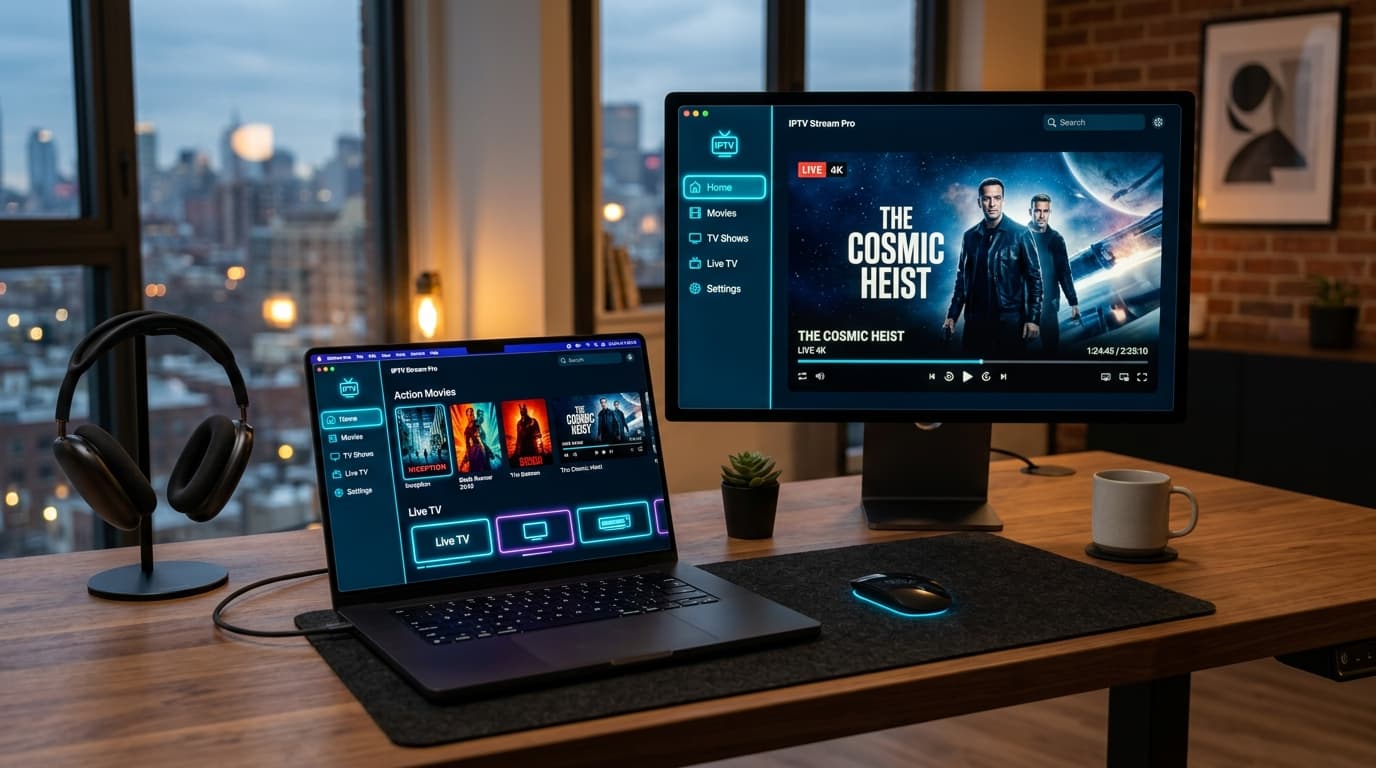
High-Speed HD & 4K IPTV Streaming on Mac (macOS)
Before You Start
Ensure you have the following prerequisites ready before starting your NOB IPTV configuration:
Your NOB IPTV playlist URL or server login credentials received via email
Apple Mac running macOS 11 (Big Sur), macOS 12, 13, 14, or newer
Broadband connection of 20 Mbps or higher for stable HD/4K playback
Supported macOS media player app from Mac App Store or direct verified download
Install the Required Application
Open the Mac App Store or download a supported IPTV player for macOS. Complete the installation and drag the application to your Applications folder.
- Open the Mac App Store on your Mac.
- Search for a supported IPTV or media player application.
- Click 'Get' or install the DMG package into Applications.
Mac App Store search result showing supported player app.
Open the Application
Launch the application from Launchpad or Finder > Applications. If macOS Gatekeeper requests confirmation, click 'Open'.
- Launch the app from your Applications folder.
- Allow required network permissions when prompted by macOS.
macOS application window with 'Add Server' or 'Add Playlist' options.
Enter the Information Supplied After Purchase
Select 'Add Playlist' via Xtream Codes API or M3U URL. Enter your NOB IPTV server URL, username, and password as provided in your activation email.
- Name the connection 'NOB IPTV'.
- Copy and paste your username and password accurately.
- Enter the Server URL provided in your email.
macOS modal dialog for entering server URL and credentials.
Complete Configuration
Click 'Add' or 'Save'. The application will download and parse channel directories, categories, and electronic program guide (EPG) schedules.
- Wait for the initial playlist download to complete.
- Confirm that channel categories appear in the sidebar.
macOS progress view showing channel listings syncing.
Start Using the Service
You are ready to stream with NOB IPTV on macOS. Browse live channels using the sidebar and use native macOS keyboard shortcuts or Picture-in-Picture mode.
- Select any authorized stream from the channel sidebar.
- Click the Picture-in-Picture button to multitask while watching.
macOS player window displaying live video stream and playback controls.
Need Help with Mac (macOS) Setup?
Our support team is ready to guide you through any configuration questions or technical issues.